One of a planner's functions is to update project progress. Depending on the project phase and type, progress must be updated in different ways. In addition, each engineer is more comfortable working in a particular way; as the saying goes, every master has their own method.
Layouts, Excel imports, steps and native Primavera tools can be used to make the update process easier. However, the best method is the one that produces the most reliable results in the fastest possible way.
Regardless of how progress is updated in Primavera P6, it is necessary to understand the different options available. There are 3 different methods for calculating the actual progress of an activity: physical percent complete, duration percent complete and units percent complete.
1. Physical progress
The progress primavera p6 physical percent complete guide of each activity is entered manually by the planner, so the progress is calculated outside the schedule. The value is based on 2 factors:
- Physical parameter. If an activity has several resources assigned and progress must be given according to one of them, physical percent complete should be used and progress calculated manually.
- Expert judgement. It may be that there is no objective way to measure the progress of an activity and an estimate is made instead. Steps can be used to help calculate progress by assigning each step its corresponding progress percentage.
Steps
Primavera P6 allows activity steps to be defined and used to enter progress, thereby updating the physical percent complete of the activity. For example, the following milestones or steps could be defined in an activity related to project engineering.

The weight of each step within the activity must be determined, and a progress percentage can be assigned to each step or marked as complete once that milestone has been reached.
For Primavera P6 to calculate physical percent complete using steps, the specific parameter must be activated. In the projects menu, on the calculations tab of the selected project, the Activity percent complete based on activity steps option must be activated.
Physical progress in WBS
Summary WBS levels roll up information from the activities they contain. For example, the man-hours or units of the WBS are the sum of all activities contained in that WBS, and the start is the earliest date of all activities. Physical percent complete cannot be rolled up at WBS level because it is an external parameter.
Summary
Physical progress is a way of entering manual progress based on expert judgement or other external factors.
An interesting use of physical progress may be when more than one resource is assigned to each activity and only one of them needs to be used for progress. In this case, units progress cannot be used because it uses the units of all labour and non-labour resources assigned to the activity. A global change can calculate the value automatically and enter it in the field.
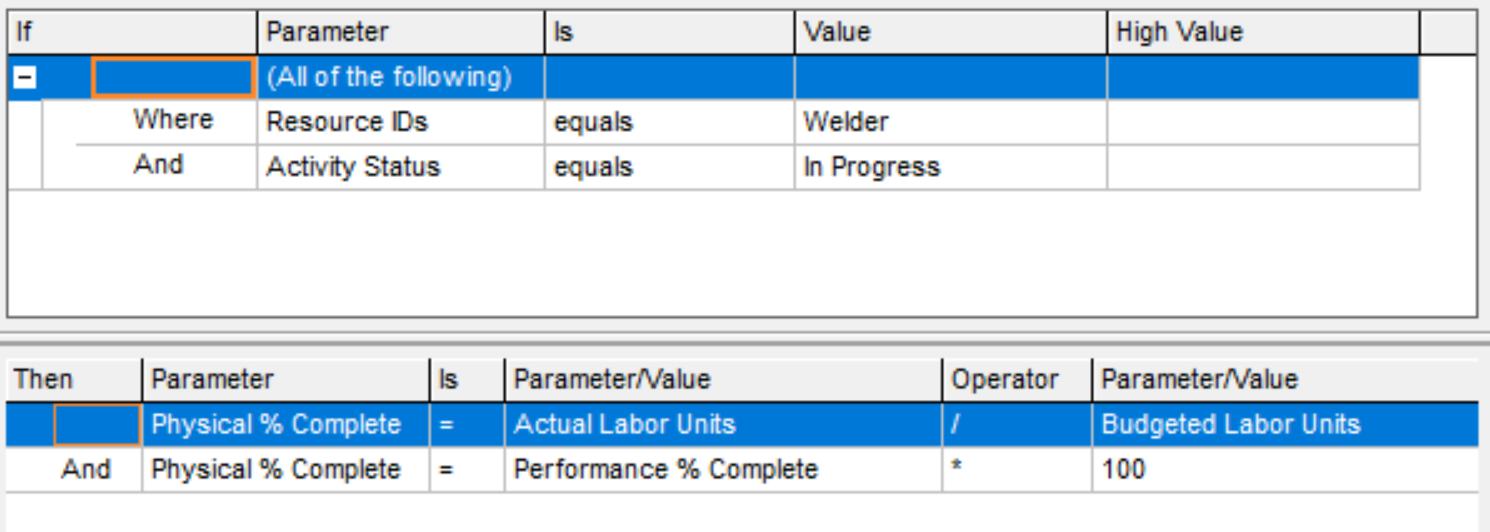
Another example is when a duration percentage similar to Microsoft Project is needed, based on At Completion Duration rather than Original Duration. Another global change can be created to calculate this value and present it as physical percent complete.
2. Duration progress
Duration percent complete primavera p6 duration percent complete guide shows how much of the planned duration has been completed. For example, if an activity is planned to take 10 days and 2 days remain until completion, the percent complete is 80%.
If an activity takes longer than planned, the schedule will adjust the progress percentage and the earned value obtained for the project will be calculated automatically based on duration percent complete.
The main problem lies in the formula Primavera uses to calculate percent complete. By using original duration instead of actual At Completion Duration, it produces unintuitive results that can lead to errors in the reported progress percentage.
[Duration % Complete] = ([Original Duration] - [Remaining Duration])/[Original Duration]
The Microsoft Project formula uses the expected actual duration, producing a completely different percentage.
Duration progress % (MSP) = Actual Duration/(Actual Duration + Remaining Duration)
Example
Primavera P6 calculates original duration when the activity has not started as the difference between the early finish date and the early start date. Once the activity has started, original duration must be modified manually. Assume an activity with the following data:
- Original Duration: 10d
- Actual Duration: 8d
- Remaining Duration: 9d
Duration progress % (P6) = (10-9)/10 = 10%
Duration progress % (MSP) = 8/(8+9) = 47%
To use the MS Project formula to calculate progress, a global change simply has to be run for all started activities so that original duration equals at completion duration. This way of working is not recommended because the information stored in the Original Duration column will be lost, and a global change will also have to be run every time the schedule is updated.
Duration progress in WBS
For WBS, duration progress percentage is calculated in the same way as for an activity: Original Duration minus Remaining Duration divided by Original Duration. It is important to remember that WBS duration is calculated using Planned Start, Planned Finish and the calendar assigned to all activities. If activities within the WBS have different calendars, Primavera will use the default calendar.
Because unwanted dates are often stored in planned data, the calendar to be used cannot be selected, and the formula is not very intuitive, this measure is not recommended for tracking progress of a WBS element.
Summary
The formula used by Primavera P6 is not very intuitive for calculating duration percent complete, which can confuse some planners. A global change can be applied to modify original duration and calculate progress percentage more intuitively. Use of this parameter is not recommended for tracking project progress.
3. Units progress
For units progress calculation, Primavera uses only the units (hours) corresponding to labour and equipment resources. Material resource units (m2, m3, kg) are not taken into account. Unlike duration progress, this case uses total units rather than original units. Therefore, the formula is:
[Units % Complete] = [Actual Units] / ([Actual Units] + [Remaining Units])
Actual units are the sum of all actual units for labour and equipment resources.
Even so, there are certain limitations that make it necessary to use Excel to maintain some records. For example, suppose a flooring installation activity is planned to take 4 days and 100 m2 of flooring must be installed. On the first day, 10 m2 are installed; on the second day nothing is installed; on the third day 40 m2; on the fourth day 20 m2; and on the fifth day 30 m2.
To keep a record in Excel, it would be as simple as creating a table with the square metres, hours or any other unit installed each day for all necessary activities. In Primavera, this direct assignment is not possible; instead, the 100 m2 of material units would be distributed according to the curve assigned to the resource.
Example
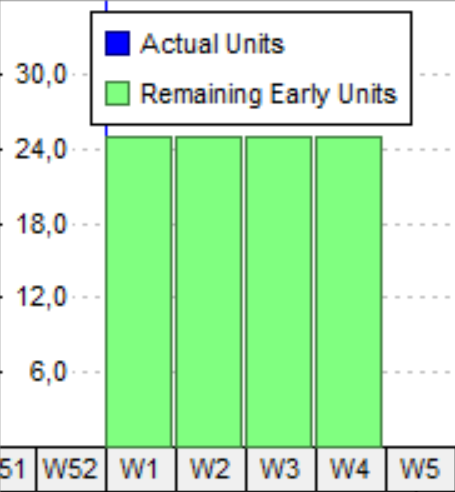
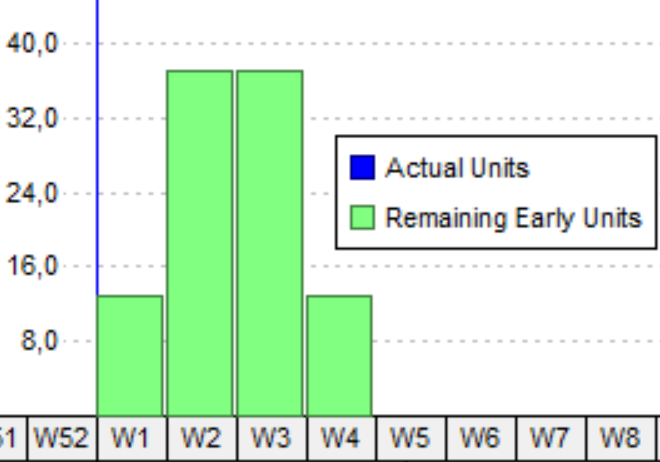
When using units to prepare progress curves, it is important to remember how Primavera works with started activities that have actual units assigned. If an activity in progress has actual executed units and the data date is advanced, Primavera redistributes those units over the elapsed days. This means that past units will vary, modifying past progress.
For example, suppose a project has a single activity. Completing that activity requires 100 units, whether material units, man-hours or equipment units. In the first week, 20 units are completed, so progress is 20%. In the second week, no work is performed. However, when the data date is moved, the 20 units would be redistributed over the 2 weeks according to the curve assigned to the resource. With a uniform distribution, if progress for the first week were calculated using units, the result would be 10% in the first week and 10% in the second week. If the activity were completed in the third week, the progress curve would show that 33.3% had been completed each week.
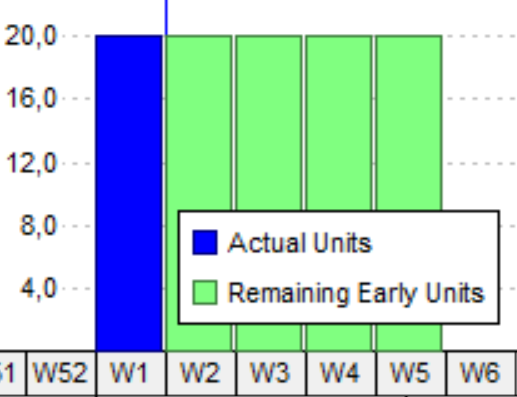
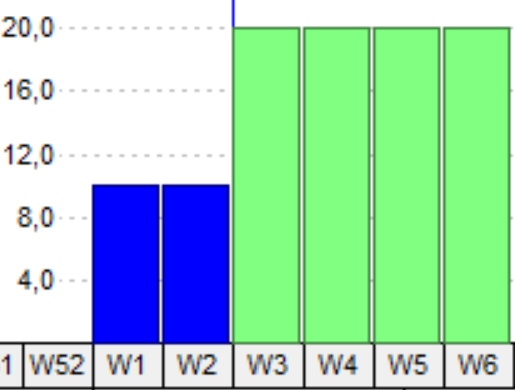
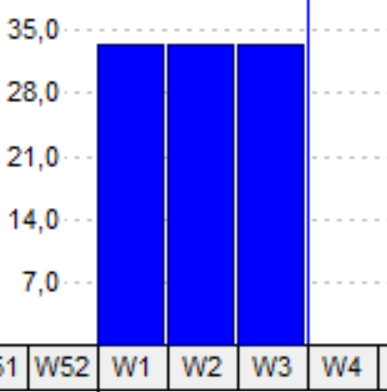
To solve this problem, Primavera offers the option to store period performance. A regular interval must be defined using the financial period calendar and the actual units for that period must be stored for each interval.
Units progress in WBS
For WBS, units progress percentage is calculated in the same way as for an activity. All actual labour and equipment units are added and divided by all at-completion units of the assigned resources.
Summary
It is a simple and realistic way to control project progress, provided that all activities have resources assigned and realistic information is available. The main problem lies in obtaining the real work hours for all activities and being able to update the remaining hours for all activities.
Units can be exported and used to prepare progress curves.